
Roster import
Use the CSV template to bring in a player list, or add players individually as they join.
FootballArc
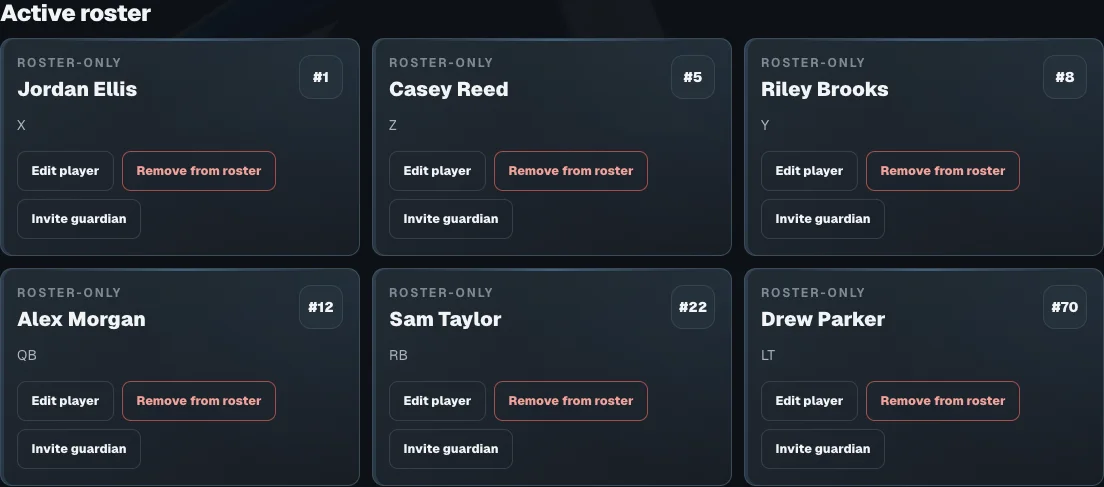
Add players individually or import a roster with jersey numbers and positions. Connect parents and guardians through private invitations. With a Team plan, you can also invite staff and assign access to the tools they help manage.
In FootballArc: Personnel → Roster / Coaches & Staff
Keep each player’s jersey number and primary and secondary positions with their roster record. Use the position labels your team coaches, and update those details when a player’s role changes.
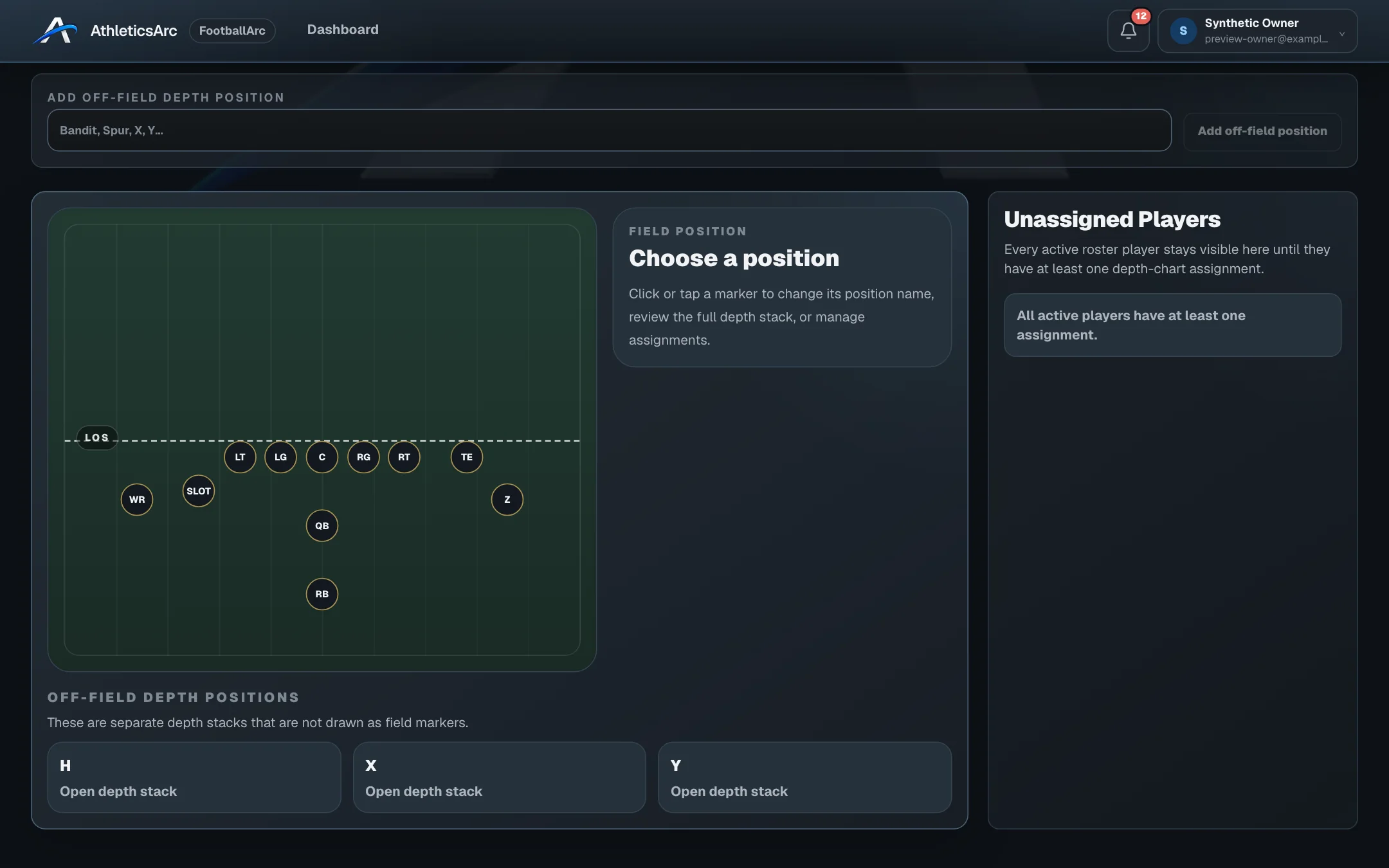
With Pro or Team, use the roster to build formation depth charts and personnel packages. Assign players to field positions and arrange backups in the order you want your staff to use.
Use the CSV template to bring in a player list, or add players individually as they join.
Send an invitation from a player’s roster record so a parent or guardian can connect with the correct athlete.
FootballArc Team includes staff invitations and shared permissions. Choose the areas each staff member can view or manage.
The seven-day trial includes play design, playbooks, and roster work. Printing and advanced team tools require an eligible paid plan. Your team also controls access to its tools. Images show sample coaching and family data.
Open a sample play, change the assignments, and use playback. The public demo is free to explore and needs no account.